
Choose the details
Name the expense, enter its amount, and select the category and account it should affect.
Monthly spending, without re-entry
Rent, internet, and subscriptions can be easy to forget when you are tracking everything by hand. Set a fixed monthly expense in Higxel once, then see each recorded payment alongside the rest of your spending.
See the plan at a glance
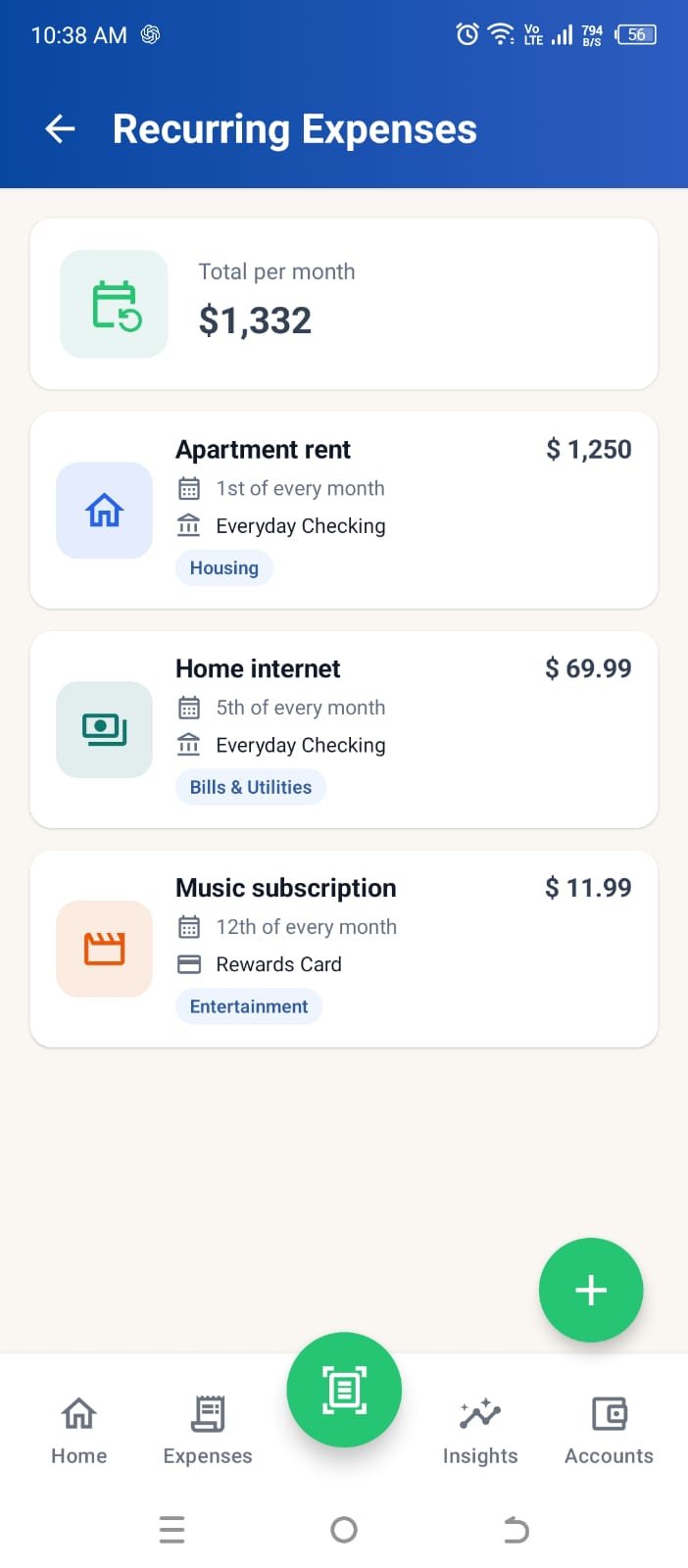
The Recurring Expenses screen shows the total of your monthly schedules, their due days, categories, amounts, and the accounts they affect. This example uses sample data; the amounts and dates in your account are the ones you set.
Set it up once
Create a recurring expense with a title, amount, category, payment account, and day of the month. Use it for a fixed amount you expect to record regularly; if the amount varies, review the saved expense and adjust it as needed.
Name the expense, enter its amount, and select the category and account it should affect.
Pick the day it is due. If that day has passed in the current month, the schedule begins next month.
When due, Higxel records the expense. Find the saved entry in History to review or edit it.
Stay in control
Edit a schedule when a price, account, category, or due day changes. Removing a recurring schedule stops future entries; expenses already recorded stay in History until you choose to edit or delete them. Review the saved entries in History if you also entered a payment manually.
Recurring expenses are records inside Higxel, not bank payments. The app does not pay a bill or connect to your bank for this feature.
Recurring expense FAQ
No. A recurring expense records spending in Higxel and updates the account balance you track there. It does not make a payment or connect to your bank.
The schedule starts next month. Higxel does not create an old expense for the past due day.
Future automatic entries stop. Expenses already recorded remain in History and can be edited or deleted separately.