
Capture the receipt
Use your camera or choose an existing receipt image from your Android phone.
Android receipt scanning
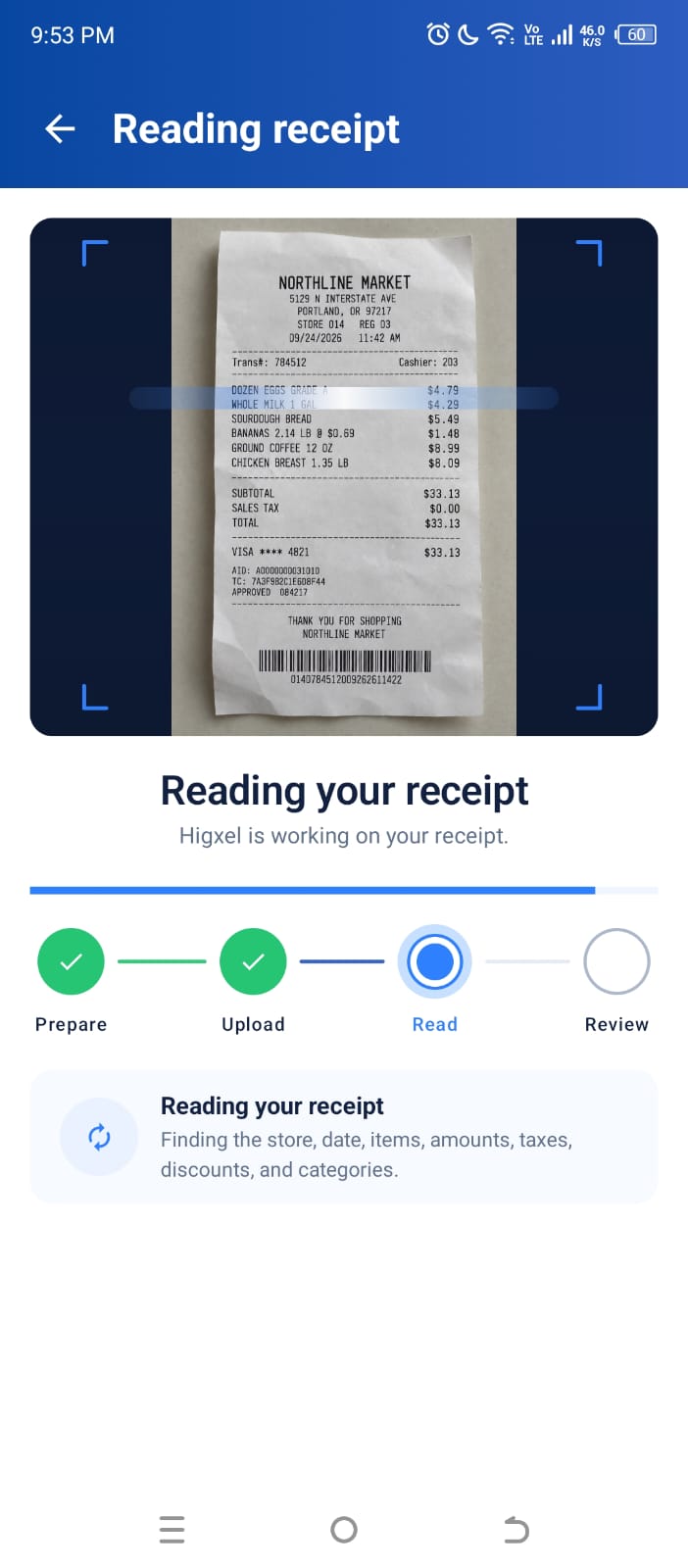
Take a photo of a receipt, and Higxel turns it into an editable expense. Check the merchant, date, total, and items before saving.
Before you save
The current app recording uses a sample receipt.
A receipt photo is useful, but it is not yet an expense record. Higxel reads the details it can identify and puts them into editable fields for you to check before saving.
Use your camera or choose an existing receipt image from your Android phone.
Higxel prepares the store name, date, total, items, and suggested item categories for you to check.
Correct anything that needs changing, choose how to organize it, and save only when you are ready.
Review first
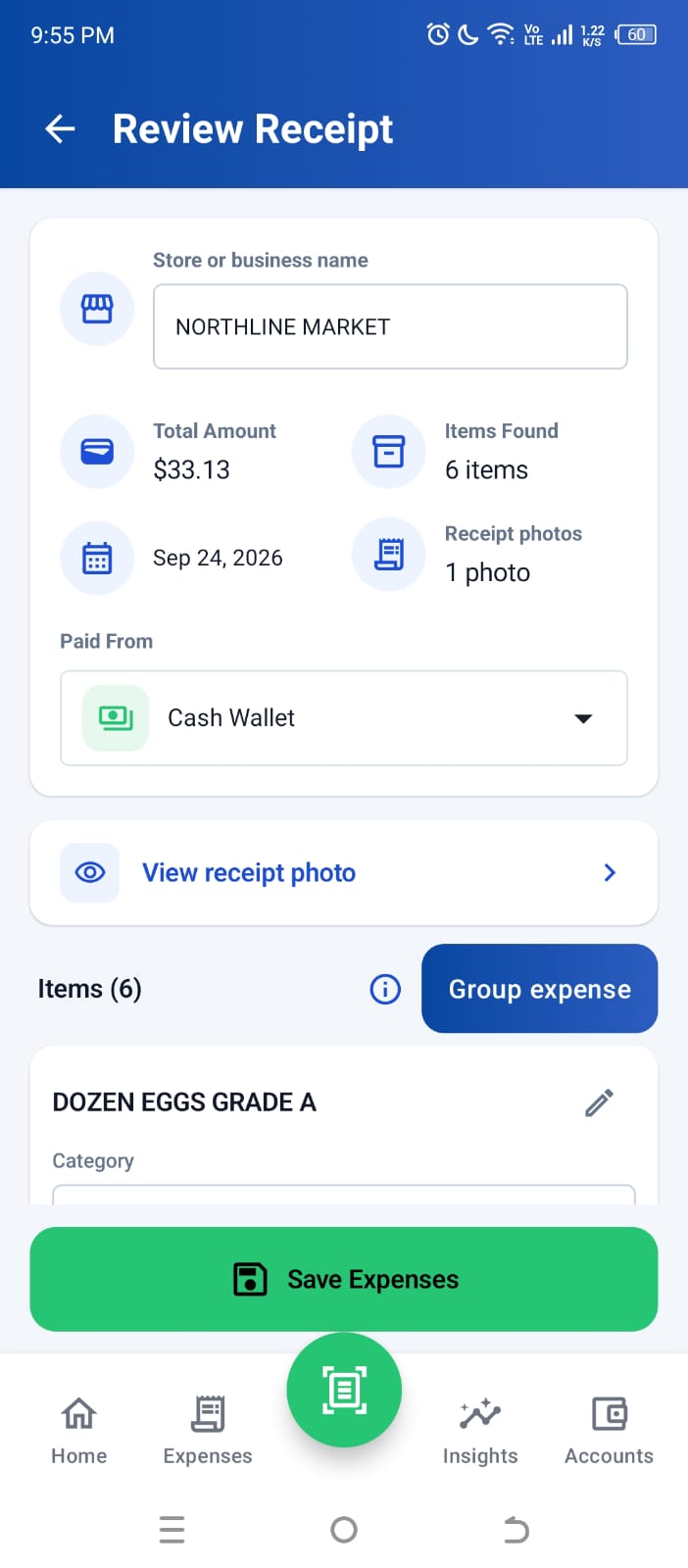
The review screen shows the store, date, total, item count, receipt photo, and payment account. Check these details and choose the account that paid before saving; Higxel does not save a scan automatically.
Receipt items
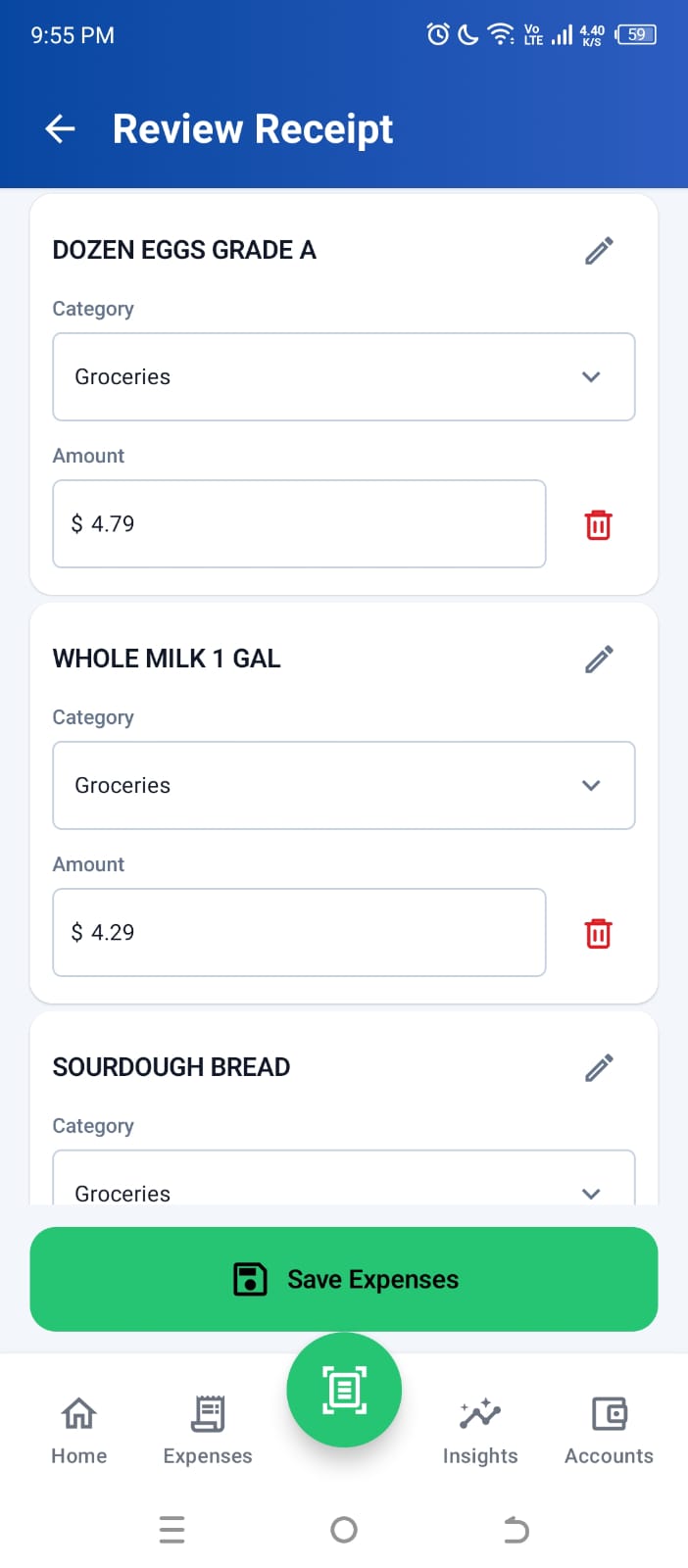
Scroll through the extracted items and correct names, categories, or amounts before saving. A grocery receipt can contain different kinds of purchases; each item can keep its own category while the receipt stays together under the store name.
Once the expense is saved
Check item categories and the account that paid. Grouping is optional.
Search the saved expense later from History whenever you need it.
Let the saved expense contribute to budgets and monthly spending insights.
Receipt scanner FAQ
You can check and edit every result before saving.
Photograph a receipt or choose an image from your phone. Higxel reads details such as the merchant, date, total, and individual items into editable fields. Check the result, correct anything that needs changing, and save when ready.
Yes. Correct details before saving, and edit the saved expense later from History.
No. Save the receipt together under the store or business name. Its items keep their own categories for spending reports. Group expense is optional and lets you create separate named expenses with their own group categories.
Each group saves as a separate expense. Any remaining items stay together as one expense under the store name. For example, grouping 2 items from a 23-item receipt creates one group expense and one store-named expense containing the other 21 items.
Enter the store or business name before saving a scanned receipt. Higxel asks: “Enter the store or business name before saving.” Manual expenses do not have this store-name requirement.
No. The standard receipt flow shows the extracted result for review before you save it.
Yes. Higxel also supports manual expenses when there is no receipt to scan.
Yes. Continue as a guest to try expense tracking and a limited receipt-scan allowance without Google sign-in. Guest records stay separate from Google account records. Sign in with Google for Expense Suggestions, a larger receipt-scan allowance, and access across devices.
Guests and Google-signed-in users have different receipt-scan allowances. In Settings, open Help & About → Receipt scan allowance to see your allowance, usage, and reset date. Manual expense entry does not use a receipt scan.
Yes. Receipt processing needs an internet connection to prepare the extracted details. You can review and correct the result before saving; taking a photo alone does not complete the scan.
Yes. Choose your tracking currency in Settings, including Indian rupees (INR), US dollars (USD), Pakistani rupees (PKR), and other supported currencies. Choosing a currency does not convert amounts between currencies.