
The quick answer
Take a clear photo of each receipt while you still have it. Check the store name, date, total, items, and item categories Higxel prepares. Save the receipt together; grouping is optional when you want separate expenses. Keep the paper receipt when a return, warranty, employer, insurer, tax rule, or local requirement says you should.
7 steps to organize receipts digitally
- 1
Know why you might need it again
A normal purchase, work reimbursement, return, and warranty do not need the same detail. Keep what will help for that purchase and skip what will not.
- 2
Take a photo before the receipt disappears
Paper receipts fade, tear, and get lost. Photograph yours soon after paying, or choose a digital receipt image while the purchase is still easy to recognize.
- 3
Check the details Higxel found
Confirm the store or business name, date, total, and item names before saving. Scanned receipts need the store name, which identifies the saved expense. Clear item names and notes help you recognize what you bought.
- 4
Use categories you will remember
Give similar items the same category. A mixed receipt can stay as one expense while its items have different categories. Choose Group expense only when you want separate named records; anything left ungrouped stays under the store name.
- 5
Add a note only when it helps
A short note can explain a reimbursement, project, warranty, trip, or unusual purchase. Most everyday receipts do not need one.
- 6
Choose how you paid
Select cash, a bank account, a wallet, or a credit card so the expense matches the right balance.
- 7
Review new expenses once a week
Fix unclear titles, wrong categories, or missing purchases while they are still easy to remember. Export or sync only when you need a separate report or backup.
See how one receipt becomes something you can find later
These current screens use sample data, not customer records. You can correct item names, amounts, and categories before saving. If you need separate named expenses from one receipt, choose Group expense; saved expenses then appear in History by date.
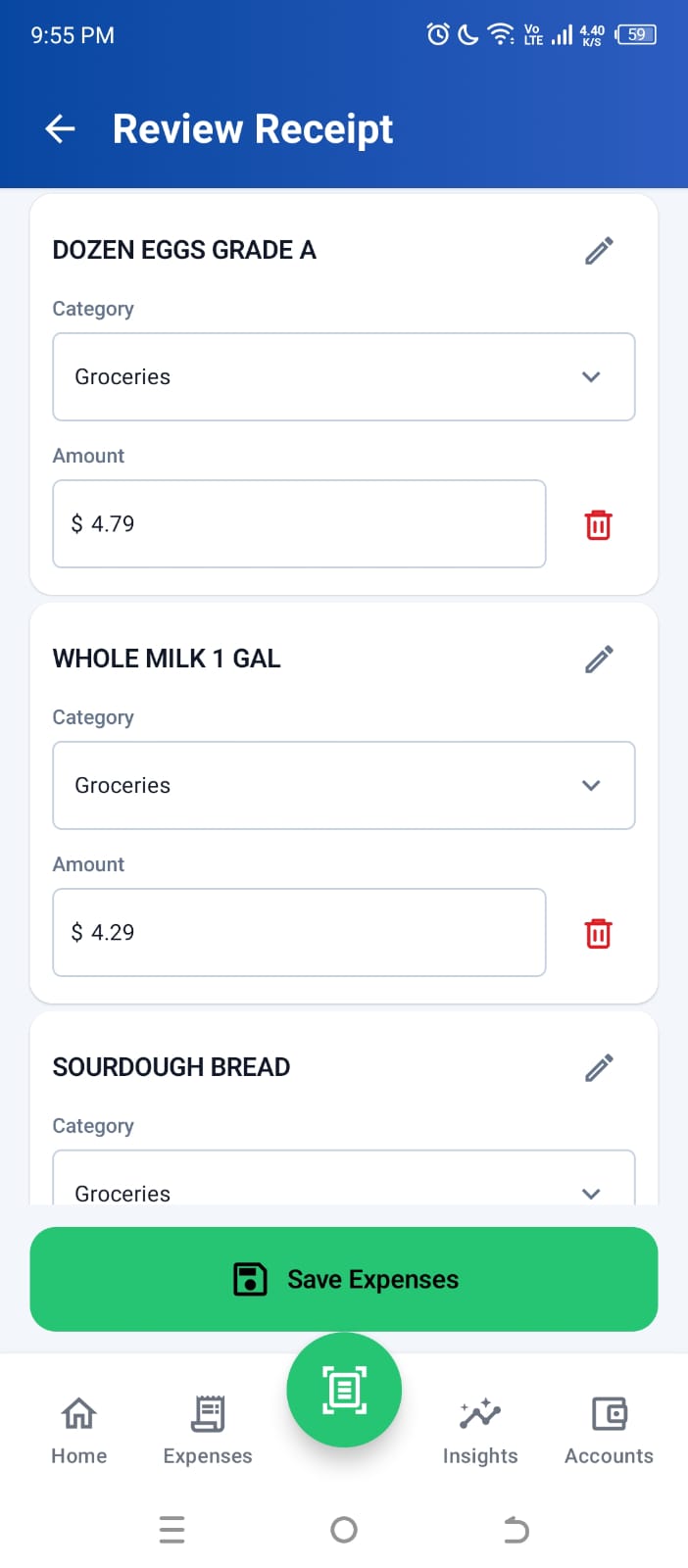
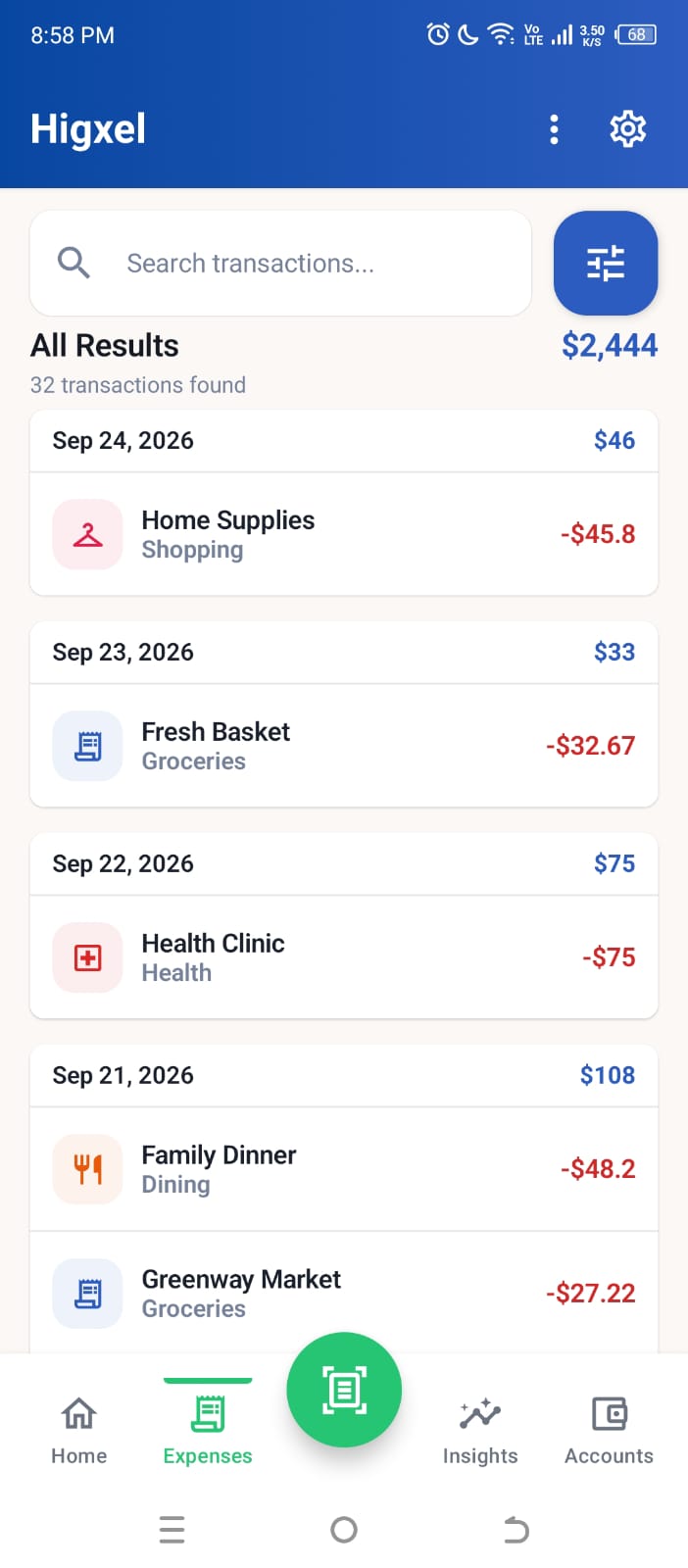
- The receipt result remains editable before it enters your history.
- Categories and groups can reflect how you actually think about the purchase.
- History keeps the saved record easier to search than an unexplained gallery photo.
Three organization examples
Restaurant receipt
Keep the merchant, date, final amount, dining category, and payment account. Add a note only if it was a work meal or another detail matters.
Supermarket receipt
Save one expense under the supermarket’s name. Give food and household items their own categories for reports. Group selected items only if you want them saved as a separate expense.
Electronics purchase
Use a clear item title and preserve any documentation needed for a return or warranty. The expense record helps you find when and where it was bought.
Do you still need the paper receipt?
Sometimes, yes. A photo or expense record does not automatically replace a receipt required for tax, warranty, reimbursement, return, or legal purposes. Check the rules for the purchase and where you live.
When the original matters, store it in a clearly labeled physical folder until the relevant deadline passes. Your digital record can still make the purchase easier to find.
A five-minute weekly cleanup
- Confirm that new receipts have understandable titles and dates.
- Fix unclear categories and payment accounts.
- Remove accidental duplicates.
- Add missing context for reimbursements, returns, or warranties.
- Check that important original documents are stored where required.
Higxel combines editable receipt review with saved expense history, categories, accounts, and Excel export. Explore the Receipt Scanner for Android and Expense Tracker for Android pages to see how those pieces connect.
Install Higxel for Android and start with your first expense.